

May 20, 2013
Top 5 Server and Admin Applications for Android and iPhone
 No matter what is the nature of your work, whether you are a webmaster, server administrator or an IT professional, the ability is to deal with your admin tasks and the server is your utmost priority. In this article, we are going to discuss the top five server and admin applications that is suitable to your iPhone, and Android mobile gadgets.
1. AndFTP
For those who are not yet familiar about AndFTP it serves as an SCP, FTP, and SFTP and FTPS client. Moreover, AndFTP let the user to handle number of FTP configurations; as well it provides features like download and upload and sharing management. As well AndFTP allows the user to delete, rename, open, or update permissions, and also to run custom commands.
2. ConnectBot
ConnectBot act as a Secure Shell client intended for Android users, as well it creates secure connection through using a shell even the gadget is in the remote distance to transmit files and data back and forth to your phone. Furthermore, ConnectBot let the user to handle numbers of SSH sessions, as well allow them to copy and paste between other applications, and to build protected tunnels.
Jack Wallen an award winning writer of Linux.com stated that ConnectBot is a must have app, in fact he recommend this app to the Linux admin who are using Android phone.
3. ServerMonitor
ServerMonitor is an app intended for iPhone users, it uses SSH protocol to link machines remotely to assists with your workstation and server monitoring requirements. The multi-protocol supports include the following: FTP, SMTP, HTTP, IMAP, MySQL, HTTPS, DNS, POP3, Ping and SSH.
Although there is no much review regarding this app but the general response seems to be optimistic. Based on the feedback from the users one thing they want to be added in this app on the next update is the ability to view all list of running processes and to view how much memory they occupy.
4. iSSH – SSH / VNC Console
The iSSH – SSH / VNC Console for iPhone is an SSH and Telnet emulator that is fully featured with ANSI, VT102, VT100, and VT220 incorporated with tunneled X server, RDP client and VNC client. As well this app has the ability to carry simultaneous connections with total terminal compatibility, intuitive user interface, and configurable macro and key options.
5. Network Utility
Network Utility let the user to check the status of their server or websites through their Apple device or iPhone anywhere. Network Utility is fully featured with TCP/IP Port Scan, ping (ICMP Echo), IP address information, Whois Query, GeoIP Lookup, and more.
For me this another iPhone app that seems to be gathering mixed reviews. Some user approved its efficiency and its user friendliness, but other user rising complaint that this app causes their device to freeze up that can only be fixed through restarting the device. Users as well object about the absence of subnet scans. The decision is still out on this app. But the best thing we need to do is to try this and experience how it holds up.
About the Author:
Stacy Carter is a tech writer and freelance blogger laying out for tech news via online exposures. She is the author of the site: iPhone Spy where you can get valuable information about spy software program on your cell phone.
February 4, 2013
Wine Making It Possible to Run Windows Apps on Android Platform

It was, according to Phoronix - who witnessed the demo - "horrendously slow", and running on a Mac which was itself running an Android emulator. Nevertheless, he added, the demonstration at the FOSDEM open source meeting in Brussels did show Windows applications running on an Android platform, which is technically impressive even if difficult to justify.
This is a step forward for Wine (originally an acronym for "Wine Is Not an Emulator") as it would extend its capability of running Windows applications on other operating systems. At the moment, it can load them on Linux, Mac OSX, & BSD. It achieves this by real-time translation of Windows API calls into POSIX calls.
Wine is funded largely by CodeWeavers, which makes money selling a supported version branded CrossOver, though Google has been known to send money Wine's way and other companies have been involved when getting their Windows applications ported to Linux.
The idea of Wine isn't to provide a Windows desktop, but to support the single killer application which is keeping someone from switching... of course, the problem is that everyone has a different reason not to switch. If Android proves popular on tablets then Windows apps could be similarly sticky, and CodeWeavers could make money selling CrossOver for Android.
But that's for the future. What we have now is a very flaky demo which proves it can be done. While CodeWeavers sponsors some staff, the majority of Wine is the usual open-source mix of hobbyists and fanatics (sign up here), so future development will depend on that community, as well as the commercial potential of running Windows apps on Android devices.
January 16, 2013
Android Botnet Infects Over 1 Million Phones in China

According to Chinese publication Xinhua, the Trojan that powers the botnet is Android.Troj.mdk, a threat first discovered back in 2011.
Once it’s installed on a device, the Trojan allows its master to take complete control of it. The malicious element can be used to harvest messages, phone numbers, contact details, geo-location data and even media files.
Bitdefender experts note that the Trojan also downloads additional applications that slow down the phone’s performance, generate aggressive adware, and drain the device’s battery.
With over 420 million mobile users, China has become an important target for malware developers.
December 28, 2012
Android Trojan Capable of Launching DDOS Attacks from your Smartphone

For the time being, it’s uncertain how the Trojan is distributed, but experts believe the cybercriminals might be disguising it as a legitimate Android application.
Once it’s installed on a smartphone, the malware creates a fake Google Play icon on the desktop. When executed, this shortcut opens the real Google Play in order to avoid raising any suspicion.
After being executed, the Trojan connects to a remote server, sends it the victim’s phone number, and waits for further SMS commands.
The masterminds of Android.DDoS.1.origin can send various SMS commands. One of them orders the infected device to start sending out packets to a certain server, basically launching a DDOS attack against it.
While this only affects the phone’s performance, there are other activities that can be done by this threat. For instance, the cybercriminals can order the device to start sending out SMS messages to certain numbers.
These SMSs can be used to sign up the victim for premium mobile services or they can be utilized to send out spam.
Messages can also be sent to premium rate numbers, inflating the victim’s phone bill and implicitly filling the fraudsters’ pockets.
“Activities of the Trojan can lower performance of the infected handset and affect the well-being of its owner, as access to the Internet and SMS are chargeable services. Should the device send messages to premium numbers, malicious activities will cost the user even more,” experts noted.
Doctor Web has updated its products to ensure that its customers are protected against this threat.
August 8, 2012
Sophos Offers Free AntiVirus Solution for Android Users

The software tries to protect smartphones against malware, warns fandroids of privacy-invading programs and can lock down a gadget if it's lost or stolen, ideally without taxing either performance or battery life. The software, released on Monday, can be downloaded from Google Play.
Several free-of-charge security scanners already exist for the Android platform, but the performance of some in recent tests has been mediocre. Paid-for products from the likes of Kaspersky and F-Secure tend to perform better. Sophos is positioning its product against the more capable freebie Android scanners from the likes of Lookout and AVG (Droid Security), but with the additional benefit of offering hardware loss and privacy dashboard features more associated with paid-for products.
Sophos Mobile Security is designed to automatically scan apps as users install them, thus blocking undesirable software. The technology also locates lost or stolen Android devices as well as shielding personal information from thieves.
Sophos has entered the mobile security zone a few years late, but rather than corner the freebie Android scanner market, its new software will be used to market a managed Enterprise version, due to be released this year.
The strategy makes sense because it dovetails neatly with the bring-your-own-device craze that's allowing consumers' technology choices shape corporate IT, including the mobile security products that are used.
Android malware last year increased 155 percent from 2010, according to Juniper Networks.
"We're seeing no slowdown in the number of malicious apps, as more smartphone owners use their devices to not only store personal data, but also access social networks and the internet," said Matthias Pankert, vice president of product management, Sophos. "This usage, coupled with the increase in Bring Your Own Device (BYOD) activity, is making Android devices a compelling target for cybercriminals and malware."Sophos released a freebie security scanner for Macs two years ago. The plan in that case was more about improving home punters' cyber-hygiene than pushing licences, but mobile security is much more integral to the corporate plans of the UK-based security software firm, so Sophos Mobile Security is not a philanthropic gesture.
July 4, 2012
How To Transform your Kindle Fire into an Android 4.0

This guide is directly based on the excellent guide written by XDA Developers user Kinfauns. Kinfauns's guide and his Kindle Fire for Beginners guide are highly recommended reading, but they're fairly lengthy. I've simplified the process and then tested it myself, so I can walk you through all of steps; but please use caution when tinkering with your gadget, and understand that ProHackingTricks accepts no responsibility for the consequences. That said, read on for a quick step-by-step procedure that you can follow to transform your Kindle Fire into an Android 4.0 tablet!
Requirements
- A Kindle Fire with a full battery (if it's not full, take time to recharge it fully).
- A USB cable for connecting the Kindle Fire to your computer.
- A Windows computer that you have Administrator rights for.
- fbmode by XDA Developers user Pokey9000.
- The FIREFIREFIRE bootloader for Kindle Fire.
- The TeamWin Recovery image, also known as TWRP.
- The Kindle Fire Utility, a third-party toolkit that simplifies many tasks and includes vital drivers.
- An ICS (Android 4.0) ROM for the Kindle Fire. You can pick one from this list of ROMs. For this wow-to, we'll be using AOKP, a well-regarded third-party ROM. The latest AOKP version at the time of this writing is build 38, but it's a good idea to check for the most recent version.
- [Optional] The Google Apps bundle, including Gmail, Google Play, and other essential Android apps. This is packaged separately from the ROM for legal reasons. If you download AOKP, you can find Google Apps for AOKP release 38, under GApps (the last link on the page).
- A willingness to void your warranty and to use the Windows command line. This how-to does not use graphical tools.
Install the Kindle Fire Drivers
For this procedure to work, your computer must correctly recognize the Kindle Fire as an Android device. Here's how to make that happen:
1. If your Kindle Fire is connected to your computer, unplug it.
2. The KFU zip contains a folder called Kindle Fire Utility. Unzip the contents of this folder into a new folder, c:\kfu.
3. Run the install_drivers.bat file that's in the c:\kfu folder. Windows will pop up a UAC prompt, and then start the Kindle Fire Driver Installer.
4. As you step through the installer, you'll receive a Windows Security alert warning you that the drivers are not signed. Install the drivers anyway.
5. The installer should complete successfully and show a confirmation dialog with the driver name:

Verify That the Drivers Were Successfully Installed
Before doing anything risky with your Kindle Fire, make sure that your PC fully recognizes it as an Android device:
1. Connect the Kindle Fire to your computer and wait for a few moments while Windows recognizes it (even if you've plugged it in before).
2. Run Device Manager (Click Start, right-click My Computer, and then select Manage > Device Manager).
3. You should see the Kindle Fire registered as an Android Composite ADB Interface, under Android Phone in the Device Manager tree.
If you see this listing, you're good to go. If this isn't exactly what you see, you'll need to do some troubleshooting; for that, refer to the original guide which has an extended troubleshooting section under the heading "What can I do if the drivers won't load?"
Switch to Fastboot Mode
It's still not too late to turn back. Up until this point, you haven't done anything to the Kindle itself. But now you're about to take the first step that involves making changes to the tablet. So, without further ado:
1. Make sure that the Kindle Fire is still connected to your computer.
2. Create a new subfolder, c:\kfu\software.
3. Unzip fbmode.zip into c:\kfu\software. It contains a single file, called fbmode (with no suffix).
4. Open a command prompt window, and copy fbmode into a user-writable location on the Kindle Fire using ADB:
adb push C:\kfu\software\fbmode /data/local/tmp/
5. Edit fbmode's permissions so that it can run:
adb shell chmod 755 /data/local/tmp/fbmode
6. Run fbmode to switch to fastboot mode:
adb shell /data/local/tmp/fbmode
7. Using ADB, reboot the Kindle Fire:
adb reboot
At the end of this process, your command prompt window should look like this:

Your Device Manager should look like this:

Finally, the Kindle Fire itself should look like this:

The Fire will simply display a logo and stay put. It's not "stuck"; rather, it's in fastboot mode, awaiting further instructions.
Install a Recovery Image
Next, you'll install a recovery image--a miniature operating system that you'll use later to flash the complete ROM. The recovery image will also come in handy for creating full backups of the device, among other things.
1. Copy the TWRP .img file into c:\kfu\software. At this writing, the latest TWRP image is named openrecovery-twrp-blaze-2.1.1.img.
2. Open a command prompt window at c:\kfu\tools and install the image:
fastboot -i 0x1949 flash recovery C:\kfu\software\openrecovery-twrp-blaze-2.1.1.img
3. Change the boot mode to Recovery:
fastboot -i 0x1949 oem idme bootmode 5001
4. Reboot into TWRP:
fastboot -i 0x1949 reboot
At this point, your command prompt should look like this:

And your Kindle Fire should look like this:

Install a Custom Bootloader
You are well into the process now. Next, install the FIREFIREFIRE custom bootloader:
1. Take the FIREFIREFIRE Zip file and place it (still zipped) into c:\kfu\software. At this writing, the latest filename is called fff-u-boot_v1.4a.zip.
2. Copy FIREFIREFIRE into the Kindle Fire's /sdcard directory:
adb push C:\kfu\software\fff-u-boot_v1.4a.zip /sdcard/
3. On the Kindle Fire, press the Install button. Navigate to /sdcard if needed (you should already be there by default), and select fff-u-boot_v1.4a.zip.
4. Swipe to confirm. You should get a success message:

5. Back up the stock OS so you can roll back to it at any time. In the root TWRP menu, select Backup, modify the options if you like (the defaults are fine), and swipe to confirm. Backing up will take a while, which is one of the reasons why starting the process with a full battery is so important.

Flash the Ice Cream Sandwich ROM
You're almost there! Now you just need to copy the ROM and flash it. As noted at the outset, we used AOKP in our test runs, but different ROMs may have different flashing procedures. Read the documentation for the ROM of your choice.
1. Place the .zip files containing the ROM image and Google Apps into c:\kfu\software.
2. Push the ROM and Google Apps onto the device:
adb push C:\kfu\software\aokp_otter_build-38.zip /sdcard/ adb push C:\kfu\software\gapps-ics-20120429-signed.zip /sdcard/
3. In TWRP, select Wipe > Factory Reset. This will remove all existing files from the data and cache partitions, but it won't affect the /sdcard directory, which contains media files.
4. In TWRP, select Install. Navigate to the ROM .zip file that you placed on the device, tap it, and swipe to confirm. This will take a few moments:

5. Once that is done, tap the Back button in the upper right corner, and repeat the process with the Google Apps .zip file.
6. Tap Reboot System in the lower right corner, and boot into your brand-new Android 4.0 experience! If you wish, you can now remove the ROM and Google Apps .zip files from your device.
You should have a fully functioning Android tablet in your hands, so play around with it and let us know what you think. If you run into any problems during installation, share them in the comments below so that the community can pitch in and help you solve them. Good luck!
January 30, 2012
Tricks n Tips on How To Upgrade Your Android Phone

If you own such a neglected phone, and don't want to buy a new one, then your best shot is installing unofficial Android firmware on it.
The following is a primer on what you should know about the process of installing unauthorized Android firmware. Each phone can have its own unique steps for doing this, so you should follow instructions for your specific model.
1. INSTALL AT YOUR OWN RISK
Installing unofficial OS firmware on your phone will likely render whatever warranty from its maker you have on it null and void.
Thoroughly read the installation instructions for your specific phone model and then follow them carefully, taking time and patience. Though the odds of bricking your phone -- rendering it inoperable because of something going wrong during the install process -- is fairly low, it can happen and especially so if you rush through things.
Be aware that some features on your phone running its current version of Android may no longer be available after you successfully install a custom Android firmware. Other features could be buggy or have quirks.
2. TWO CHOICES: CYANOGENMOD OR MIUI
In the unofficial Android firmware development community, there are two major choices: CyanogenMod and MIUI. Both are built on the Android source code officially released by Google, and their latest versions are based on Android 2.3 (codenamed Gingerbread). As of this writing, the volunteer development teams of both projects are working to get new versions built on Android 4.0 ("Ice Cream Sandwich").
What's the difference between the two? CyanogenMod sticks with the basic, default components of Android that come with its source code release; its UI is "clean," devoid of unnecessary extras. MIUI completely overhauls the stock Android UI with one that resembles that of Apple's iOS.
If your Android phone is (or was) a popular model, it is probably supported by either the CyanogenMod or MIUI community.
If not, there is still a chance that somebody may be working on a port for your specific phone; search its model name in the official community forums for CyanogenMod or MIUI to see if there is such an on-going effort. (An excellent source to check is Android Forums.) But know that some or several features of your phone may not work if you install such an experimental, work-in-progress build of CyanogenMod or MIUI that is not officially sanctioned by that OS's community.
3. ROOT YOUR PHONE
Before you can start to do anything to your phone, you'll need to root it, which means basically to unlock the security settings put in place in the OS to prevent it from being altered. Check out GingerBreak to help you conveniently root your phone.
Unfortunately, this app tool might not work on more recent Android phones. This guide provides a list of instructions for rooting several specific phone models.
4. BACK UP YOUR CURRENT FIRMWARE AND PHONE DATA
You really want to do this if you need to re-install your phone's original firmware and data later (e.g., something goes wrong when you install the unofficial Android firmware; you decide you don't like CyanogenMod or MIUI; or, you need to reactivate your phone with its carrier, something which you cannot do when running either of these unofficial OSs on it).
The easiest way to do a back-up is to install ClockworkMod ROM Manager on your phone. Run this app, and select "Reboot into Recovery" from its menu. This downloads and installs a recovery image profile for your phone, restarts it, and loads a plain-looking text menu, where you can select the back-up process.
After the copy of your phone's firmware and data is made, you can move it to a computer for safekeeping. Connect your phone by USB cable to your computer, then simply drag-and-drop the backup's folder (it's on your phone's SD card under the folder "clockworkmod") from your phone's SD card to the latter device.
5. PREPARE GOOGLE'S DEFAULT ANDROID APPS FOR INSTALLATION
If you're installing CyanogenMod: Unless you want to keep your to-be-upgraded phone clean of Google apps, you'll need to install them separately. CyanogenMod does not include the standard Google apps that typically come pre-installed on an Android phone. So you'll have to download a ZIP file that contains the installation packages for apps such as Google Search and, most importantly, the Android Market. Put this ZIP in the main root directory of your phone's SD card.
6. INSTALL THE CUSTOM ANDROID FIRMWARE
This is the big deal. Download the CyanogenMod or MIUI firmware designed specifically for your phone model, which comes in the form of a ZIP package, and save it in the root directory of your phone's SD card.
Once again, run the ClockworkMod ROM Manager app, and select "Reboot into Recovery." After your phone restarts into the ClockworkMod Recovery tool, you may need to wipe out its data and cache, and format its "/system" directory -- this depends on whether you are installing CyanogenMod or MIUI, so you should refer to the instructions that specifically are for your phone.
Next, you select the ZIP file of the custom Android firmware you placed in the root directory of your phone's SD card, and start the upgrade process. It normally takes less than two minutes. If you're upgrading to CyanogenMod: Don't reboot your phone just yet... repeat the above step for the ZIP file containing the Google Android apps.
You return to the main menu of the ClockworkMod Recovery tool and select to reboot your phone. After about 2 minutes, it should boot and then run on the custom Android firmware.
7. ENJOY YOUR NEW ANDROID PHONE!
Besides updating your phone to a more recent version of Android, CyanogenMod and MIUI can also give it new features and tools, which include better power management, Wi-Fi tethering, stronger security settings, and broader personal customization of the UI. Many users report their phones run faster with one of these unofficial OSs than with the version of Android that came originally installed on it.
Android Malware Now Exploits Steganography

Security firm F-Secure have released details on how Android malware makes use of steganography to hide the control parameters for rogue code.
First, what is steganography? It’s the technique of hiding messages within something else, in this case, an icon file.
F-Secure first suspected that Android malware was making use of steganography when researchers came across this line of code:

Further digging revealed more code, and it soon became clear that the image file being referenced here was the icon file bundled with the rogue application:

So what’s this hidden information used for? It’s used to control how and when premium rate SMS messages are sent from the victim’s handset, which, as far as the bad guys are concerned, is the primary purpose of the rogue application.
You’ve got to admit, that’s a pretty clever use of steganography.
September 21, 2011
Android Bug Allows Hackers to Install Malicious Code Without Warning

The first flaw allows apps to be installed without prompting users for permission. The permission-escalation vulnerability permits attackers to surreptitiously install malware in much the way a proof-of-concept exploit researcher Jon Oberheide published last year did. In that case, an app he planted in the Android Market and disguised as an expansion pack for the Angry Birds game secretly installed three additional apps that without warning monitored a phone's contacts, location information and text messages so data could transmitted to a remote server.
“The Android Market ecosystem continues to be a ripe area for bugs,” Oberheide wrote in an email. “There are some complex interactions between the device and Google's Market servers which has only been made more complex and dangerous by the Android Web Market.”
The second bug resides in the Linux kernel where Android originates and makes it possible for installed apps with limited privileges to gain full control over the device. The vulnerability is contained in code device manufacturer have put into some of Android's most popular handsets, including the Nexus S. The bug undermines the security model Google developers created to contain the damage any one application can do to the overall phone.
Oberheide and fellow researcher Zach Lanier plan to speak more about the vulnerabilities at a two-day training course at the SOURCE conference in Barcelona in November. In the meantime, they put together a brief video showing their exploits in action.
One of the hopes for Android a few years back was that it would be a viable alternative to Apple's iOS, both in terms of features and security. With the passage of time, the error of that view is becoming harder to ignore. And if i'm not wrong, Google developers have updated Android just 16 times since the OS debuted in September 2008. The number of iOS updates over the same period is 29.
It's a far cry from the approach Google takes with its Chrome browser, which is updated frequently, and has been known to release fixes for the Flash Player before they're even released by Adobe.
Even more telling, when a new version of iOS is released, it's available almost immediately to any iPhone user with the hardware to support the upgrade. Android users, by contrast, often wait years for their phone carriers to supply updates that fix code execution vulnerabilities and other serious flaws.
Owners of the Motorola Droid, for instance, are stuck running Android 2.2.2 even though that version was released in May 2010 and contains a variety of known bugs that allow attackers to steal confidential data and remotely execute code on handsets the run the outdated version.
Oberheide has more here.
September 19, 2011
15 must have Android apps for IT pros

1. ConnectBot (Free)
f you work with Unix-based servers or other network components that support SSH/Telnet connections, you can use this open source client to remotely connect. No need to get on the desktop or boot up your laptop. You can perform admin, maintenance, or troubleshooting tasks via command-line. Additionally, it supports local connections, so you can access the command-line of your Android.
ConnectBot supports generating and importing SSH keys. You can pan between multiple simultaneous connections and copy/paste between them or other applications. It keeps a history of previous sessions so you don't have to keep inputting the host address. Even better, you can create shortcuts to frequent hosts on your Android desktop.
2. AndFTP (Free or $5.59)
You can use this FTP/SFTP/FTPS client to download/upload files or perform administrative tasks from your Android. It features resume support and enables the basic admin tasks: renaming, deleting, updating permissions, and running custom commands. You can also send files via email, messaging, Bluetooth, and via other apps. The Pro version adds support for secure copy protocol (SCP) connections and enables remote/local folder synchronization.
3. Linux Monitor ($2.61)
If you work with Linux servers you can use this simple monitoring app to remotely keep an eye on the vitals: CPU load, RAM and disk usage, and network/port activity. View stats represented in numbers or via progress bars. Though you can monitor multiple Linux machines, you can't monitor or view them simultaneously. You must manually change the monitoring address to switch between them.
The remote Linux machine(s) must be running the Apache web server with PHP, and you must upload a simple PHP script. You can download a sample version to get a feel for the app.
4. Server Monitor (Free)
This simple monitoring app can alert you if a server or a certain component/port of it goes down. This is great if you don't already have a monitoring/alert system put into place or you'd like redundancy. It supports TCP connections as well as SSH tunnels. You add a server hostname or IP address and then you can optionally add specific components or ports to monitor, including SSH over SSH. You can define the polling frequency and toggle sound and/or vibrate alerts. You can set the service to start up automatically during boot or enable manual control.
5. httpmon (Free)
This is another monitoring app, but designed specifically for HTTP servers. You can customize a request URL and check with simple pings or with customizable conditions: the response code or time and header or content contains using substrings, wildcards, or regular expressions. You can also set the desired User Agent used for all the requests, the connection timeout, and the read timeout. On failures, it can notify, flash, alert, and vibrate your phone and/or send SMS messages to others.
6. Cellica Database for Android ($39.99 after 10-day trial)
If you work with databases on a Windows server or PC, you can use this app to access and manage them from your Android. Once you install the required software on the server or PC, you'll have encrypted access to edit fields, apply select queries, filters, sorting, or even create databases. Supported databases include: Microsoft Access, Access 2007, Microsoft Excel, Excel 2007, Oracle, SQL Server, DB2, MySQL, PostgreSQL, FoxPro, dBase, R:BASE and any ODBC Compliant Database.
7. Phoenix MySql Client (Free)
If you only desire a simple connection to MySQL databases, you can use this free app to directly connect. You can then view tables, views, and stored procedures. You can perform SQL queries and execute statements: select, create, insert, etc.
8. Wyse PocketCloud (Free or $14.99)
This remote desktop client supports Microsoft RDP, platform-independent VNC (virtual network computing), and virtual VMware View connections to Windows, Mac or Linux machines via Wi-Fi and cellular connections. It supports both Android smartphones and tablets. You might use it to provide remote tech support or access a PC for its programs or files.
If you download and install their companion software to the Windows or Mac computer, it can auto configure the connection via your Google account so you don't have to mess with router settings or IP addresses. But you can always manually configure the connection as well.
The Pro version removes the advertisements and adds more features: multiple connections, encryption to secure the connections, sound support for RDP, and VMware View support to access virtual machines.
9. Android-VNC-Viewer (Free)
If you prefer VNC for remote desktop connections and don't mind configuring the router and have static IPs or a dynamic DNS host name, you might consider using this simple open source VNC client. It supports VNC connections to most VNC servers on Windows, Linux, and Mac OS X via Wi-Fi and Cellular connections.
Unlike the Wyse PocketCloud client, this app doesn't display advertisements and gives you pinch zooming for free. On the other hand, it can't automatically secure your connections. You'd have to use a separate app, such as ConnectBot, to encrypt your connection to the computer/server you're trying to remotely access.
10. Spiceworks Mobile (Free)
If your organization uses the Spiceworks IT management solution, you can use this client app to view your network and PC inventory, manage trouble tickets, and access and manage users with support of Active Directory. You can also communicate with other IT pros in the Spiceworks community to get feedback, help, or research.
11. ActiveDir Manager (Free or $1.99)
This is a must-have app if you work with the Active Directory in your organization. It lets you view and manage users, groups, and computers right from your Android. You can reset user passwords, disable or edit user accounts, adjust group memberships, and perform other basic admin tasks. It supports Windows Server 2000 and later with StartTLS, SSL, or no encryption. It can directly connect to the Active Directory server via Wi-Fi or VPN.
The only difference between the free and paid version is that the paid version enables saving of the LDAP connection settings and options.
12. Wi-Fi Analyzer (Free)
If you work with the Wi-Fi network at your organization you may want to use this Wi-Fi stumbler and analyzer app when setting up access points, checking channel usage, troubleshooting Wi-Fi issues, or doing Wi-Fi security auditing.
You can view and export the details of access points: SSID, MAC address, encryption, channel, and signal in negative dBm levels via a graphical bar and text readout. You can view channel graphs showing each access point's channel and signal in real-time or a recent history. Then a channel rating page gives you recommendations on which channels to use. You can use the signal meter view to find the access points.
13. SharesFinder (Free)
This scans for Windows (SMB), FTP and HTTP shares/servers on the network you're connected to via Wi-Fi. It's useful if you're trying to access files on the network or when doing security auditing. For each share/server you'll see the IP and media access control address, SMB name, and vendor name.
This app also supports basic file transfers and management of the remote SMB files, such as creating and deleting files and folders. You can login as anonymous or input a username and password. For HTTP resources, it launches the web browser. For FTP resources, you can connect via a third-party FTP client, such as AndFTP.
14. Overlook Fing (Free)
If you do any networking work, this is a must-have app. It can do TCP port scanning, pinging, traceroute, and DNS lookups on a network via Wi-Fi. It also shows the network details (SSID, IP details, and speed) of your current Wi-Fi connection.
You can see and export the details (MAC address, IP and vendor) for each computer or device detected on the network, which are customizable with a name, icon or notes. You can also perform a port scan or ping a particular computer or device. It can also launch third-party client apps for SSH, Telnet, FTP, FTPS, SFTP, SCP, HTTP, secure-HTTP and SMB.
16. Linux Commands (Free)
If you use Linux but aren't an expert at the command-line, this is a great app to have for reference. It lists more than 500 Linux commands that you can browse through. Select a command and you'll see the syntax, description, and any command options. You can even star your favorite commands and have them shown at startup and/or manually access your list of favorites. Though you can find the same info online, this gives you quick off-line access.
August 29, 2011
3 Best Apps for tracking Hurricanes on Android
Hurricane season is open, and that means keeping track of whether these storms will reach your hometown. Following the local news can be cumbersome if you're on the go, so why not use your Android device to help out? Here are three Android apps that can keep you informed on severe weather conditions.

Hurricane Hound
Hurricane Hound is an app designed specifically for tracking storms. Each storm is labeled by name with several icons denoting the path the hurricane is predicted to take. These icons are colored and labeled based on the category rating the storm will be at each location. Storm warnings are also illustrated on the map in the form of colored lines. Finally, the potentially affected area of the storm is noted by a yellow coloring of the map, displaying the other possible trajectories for the storm.
This app is great for the purpose it was designed for; storm directions and strengths are clearly labeled, and it's very easy to pick up the app and understand what it's showing you. Even though you can't see where storms have previously traveled, you can easily pinpoint the current location because there is no old data on the map to obscure it.

Hurricane Software
This app is very similar to Hurricane Hound in appearance and features. A notable difference is the inclusion of recorded (as opposed to predicted) readings from previous locations. The storm's current location is indicated by a white circle around the icon, which is colored in a similar fashion to Hurricane Hound.
Instead of the yellow-colored trajectory area on the map, this app uses a connect-the-dots-style path for storms. While this won't show the exact path of a hurricane, it can give you a good idea (and as history has shown, storms can decide to go a completely different direction anyway). Also, the names of storms are hidden until you tap on one of the dots in a trajectory. This can be helpful if a lot of smaller storms are grouped in one area, keeping the map free of clutter.

WPBF Hurricane
Though the phone numbers and shelter locations provided within this app are specific to Florida areas, the other tools can work for people living anywhere. There is also a sister app for the Louisiana area.
Aside from monitoring tools, this app also provides links to news stories and a hurricane checklist to help prepare for the oncoming severe weather. The map in WPBF displays the current location of storms, colored by category rating and your location, but it omits the storm's trajectory. Instead, a threat meter is provided on the main page, which is similar to the usefulness of a visual path. Reading this meter tells you the likelihood of your area being hit by a storm on a scale of 0 to 5, with 0 being no danger and 5 being an almost 100 percent guaranteed hit.
This app is an invaluable tool for planning ahead. Having checklists available for preparing your home, family, and pets for hurricanes can be a literal lifesaver--both for veterans of hurricane territory and those new to the region. Also, the inclusion of an easy-to-find and constantly updated newsfeed on storms is a huge plus.
If you're looking for an Android app to monitor storms, you really can't go wrong with any of these. Despite being similar, each app has at least one feature that makes it worth grabbing if you're serious about getting prepared for any storms headed your way.
August 17, 2011
Android Malware Posing as Google+ app

Uncovered by the team at Trend Micro, the new malware known as ANDROIDOS_NICKISPY.C can also automatically answer and record phone calls. To capture data, the app loads at boot-up and runs certain services that can monitor messages, phone calls, and the user's location, thereby stealing e-mail and other content.
Detailing its findings in a blog Friday, Trend Micro said it discovered that the malicious app tries to trick people by installing itself under the name Google++.
But instead of providing access to Google's new social network, the app sends its stolen user data to a remote site where presumably cybercriminals can grab it. Unlike some malware in the past that masqueraded as legitimate apps through Google's Android Market, this particular one must be downloaded by an unsuspecting user from a malicious Web site and then manually installed.
And even if installed, the app can be uninstalled from an Android device by selecting Settings > Application > Manage applications, choosing Google++ and then clicking Uninstall, according to Trend Micro.
Trend Micro gives the app a low-risk rating, but it's still something that Android owners should be sure to avoid.
Android users concerned about security can learn how to better protect themselves through Trend Micro's online guide "5 Simple Steps to Secure Your Android-Based Smartphones."
August 15, 2011
Exclusive: Google Buys Motorola For $12.5 Billion

The acquisition of Motorola Mobility, a dedicated Android partner, will enable Google to supercharge the Android ecosystem and will enhance competition in mobile computing. Motorola Mobility will remain a licensee of Android and Android will remain open. Google will run Motorola Mobility as a separate business.
According to a blog post, Larry Page CEO & co-founder of Google writes that Google has acquired Motorola not only because of its strength in Android smartphones and devices, but also for being a “market leader in the home devices and video solutions business.”
He said the move is to also strenghten the company's patent portfolio as it will “enable us to better protect Android from anti-competitive threats from Microsoft, Apple and other companies”.
Full press release is as follows:
Google to Acquire Motorola Mobility
Combination will Supercharge Android, Enhance Competition, and Offer Wonderful User Experiences
MOUNTAIN VIEW, Calif. & LIBERTYVILLE, Ill.–(BUSINESS WIRE)–Google Inc. (NASDAQ: GOOG) and Motorola Mobility Holdings, Inc. (NYSE: MMI) today announced that they have entered into a definitive agreement under which Google will acquire Motorola Mobility for $40.00 per share in cash, or a total of about $12.5 billion, a premium of 63% to the closing price of Motorola Mobility shares on Friday, August 12, 2011. The transaction was unanimously approved by the boards of directors of both companies.
“Motorola Mobility’s total commitment to Android has created a natural fit for our two companies. Together, we will create amazing user experiences that supercharge the entire Android ecosystem for the benefit of consumers, partners and developers. I look forward to welcoming Motorolans to our family of Googlers.”
The acquisition of Motorola Mobility, a dedicated Android partner, will enable Google to supercharge the Android ecosystem and will enhance competition in mobile computing. Motorola Mobility will remain a licensee of Android and Android will remain open. Google will run Motorola Mobility as a separate business.
Larry Page, CEO of Google, said, “Motorola Mobility’s total commitment to Android has created a natural fit for our two companies. Together, we will create amazing user experiences that supercharge the entire Android ecosystem for the benefit of consumers, partners and developers. I look forward to welcoming Motorolans to our family of Googlers.”
Sanjay Jha, CEO of Motorola Mobility, said, “This transaction offers significant value for Motorola Mobility’s stockholders and provides compelling new opportunities for our employees, customers, and partners around the world. We have shared a productive partnership with Google to advance the Android platform, and now through this combination we will be able to do even more to innovate and deliver outstanding mobility solutions across our mobile devices and home businesses.”
Andy Rubin, Senior Vice President of Mobile at Google, said, “We expect that this combination will enable us to break new ground for the Android ecosystem. However, our vision for Android is unchanged and Google remains firmly committed to Android as an open platform and a vibrant open source community. We will continue to work with all of our valued Android partners to develop and distribute innovative Android-powered devices.”
The transaction is subject to customary closing conditions, including the receipt of regulatory approvals in the US, the European Union and other jurisdictions, and the approval of Motorola Mobility’s stockholders. The transaction is expected to close by the end of 2011 or early 2012.
August 11, 2011
5 Tricks for Maximizing your Android Screen Space
No matter how tricked-out your Android layout is, you'll always find something new you want to do that takes one click too many to reach. Just as all projects go over budget, all your favorite apps and bookmarks are sure to spill over beyond your home screen. There's no one perfect solution for everyone, but there are a few habits and tools that can help keep your digital life close at hand.
Be ruthless. Clear your device of any applications you don't use, and clear your home screen of everything you don't either use every day (like Foursquare) or need to access instantly (like the QikCam photo widget). You shouldn't agonize over your choices--remember that you can always add apps or widgets back in if you miss them too much.
Organize. This is key. Just a few minutes of rearranging icons can save you time, energy, and frustration over the long term. You don't need to arrange everything alphabetically; just make sure that your screens make sense to you. Typically the home screen is best for frequently used apps, while other nearby screens are for apps you want to be able to access quickly (but don't need to access instantly). Having themed screens such as a media screen and a fitness screen often works well.

Use folders. If you don't mind two-click access, adding a folder or two to your home screen can add acres of virtual screen space. It's easy: just long-press the screen, select "Folders," and select a type, typically "New folder." To name the folder, open the folder by tapping it, then long-press the extra-boring default name ("Folder") and type in a new, memorable name. Organize these folders however you like, but it's best to keep each one down to 12 items for easiest access.
Rely on notifications and streams. Do you really need your e-mail or Gmail apps available on your home screen? Unless you're initiating new messages every day, the answer is probably no. In your account settings, just make sure that your apps check for e-mail frequently and deliver notifications to the top bar. This can also work well for Facebook and other services that deliver notifications in the top bar or can be accessed as streams on less valuable screen real estate.

Try SmartWidget or other app launchers. SmartWidget is a useful, free app with a widget that takes up four slots on your screen, which seems like far too much until you learn its secret. It gives you access to the four most frequently used apps on your device--except those that are already on the home screen. This is a clever bit of wizardry that could save some time and effort for those of us who are constantly installing new apps. There are plenty of other app launchers out there, so find the one that works best for you.

August 4, 2011
Skype 2.1 for Android enables video on majority of Android devices

When Skype brought video chatting on Android it drew criticism that only a handful of phones were initially supported, leaving out popular Android phones from Samsung and HTC. This issue seems to be resolved with version 2.1 of Skype for Android, which added support for 17 popular devices. The app is now available to download from the Android Market and works over both Wi-Fi and 3G connections.

If you really want to use Skype for Android, but your phone is not on the supported devices list, you should still be able to enable video calling in the Skype settings (just go to "Skype settings" after launching the app and select "enable video calling"), but only if you are using Android 2.2 or newer. Skype warns that in this case, video call quality may not be as good as on a certified device.
Skype also launched this week a tablet-optimized version of the app for iPad owners.
August 2, 2011
Android Trojan records phone conversation
A new Android Trojan that can log calls, record whole conversations and even send them to the bad guys has been discovered by security firm CA.
Earlier Trojans have been capable of logging call details, but this is the first one seen that can actually make a complete recording of the conversation.
After the malware finds itself onto a Android handset, it asks for a whole bunch of permissions - which should raise a number of red flags.

Once the malware is given the required permissions by the user, it installs a configuration file that contains remote server access information.

Now it’s ready to start recording conversations, which are stored on the microSD card in .AMR files.
Best defense against this sort of malware is to pay attention to the permissions that the app is asking for. Ask yourself - does this app really need all these capabilities? If in doubt, say no!
June 30, 2011
Skype Releases Cross-Platform Video for Android Users

Skype's Android client now supports cross-platform video calling, so mobile users can see desktop users and no one has to feel jealous of Apple's FaceTime any more.
The new capability is limited to four models of Android handset, the Desire S, Xperia Neo and Pro and (of course) the Nexus S, but if you have one of those phones then you should be able to make video calls to desktop colleagues and friends over both Wi-Fi and 3G connections.
Video calls between Android devices have been possible for a while, but making a video call from a handset to a desktop has always been difficult on Android, with very limited options available. For most Android users that's still true, but Skype promises that more handsets will be supported "very soon".
The new Android client can switch between front and rear video cameras, so you can show people what you're seeing as well as your own face, and claims to connect to any Skype client including the iPhone and the various Skype-enabled TVs that are now available.
The client is already in the UK Android Marketplace, or can be downloaded direct onto a phone from Skype.
June 27, 2011
How to Keep Malware Off Your Android Phone
Tips for a Malware-Free Smartphone
Following are five quick tips to help you keep your Android handset free of malware.
- Always research the publisher of the app. What other apps does it offer? Do any of them look a bit shady? If so, you should probably stay away.
- Read online reviews. Android Market reviews may not always be truthful. Check around to see what reputable Websites are saying about the app before you hit the download button.
- Always check app permissions. Whenever you download or update an app, you get a list of permissions for it. An alarm clock app, for instance, probably shouldn't need to look through your contacts. The general rule of thumb: If an app is asking for more than what it needs to do its job, you should skip it.
- Avoid directly installing Android Package files (APKs). When Angry Birds first came to Android, you could get it only through a third party. This is called "sideloading," or installing apps using an .APK file. Although Angry Birds wasn't malware, in general it is highly advisable not to download and install .APK files that you randomly come across. Most of the time you won't know what the file contains until you install it--and by then it's too late.
- Put a malware and antivirus scanner on your phone. Although many people still think that antivirus scanners on phones are useless, maybe outbreaks such as this one will change minds. Several different big-name security companies already offer mobile-security options, many of them free. I myself had downloaded "Spider Man," which is on a bad-apps list. My Lookout software identified it as a Trojan horse.
- Advanced Currency Converter
- App Uninstaller
- Chess
- Dice Roller
- Falling Ball Dodge
- Falling Down
- Funny Paint
- Hilton Sex Sound
- Hot Sexy Videos
- Photo Editor
- Scientific Calculator
- Screaming Sexy Japanese Girls
- Spider Man
- Super Guitar Solo
- Super History Eraser
- Super Ringtone Maker
- Super Sex Positions
Advanced App to SD
Advanced Barcode Scanner
Advanced Compass Leveler
Advanced File Manager
Best password safe
Bowling Time
Magic Strobe Light
Music Box
Sexy Girls: Japanese
Sexy Legs
Super Stopwatch & Timer
Supre Bluetooth Transfer
Task Killer Pro
Infected-Apps List Compiled Under the Developer Name 'we20090202'
- Advanced Sound Manager
- Basketball Shot Now
- Bubble Shoot
- Color Blindness Test
- Finger Race
- Funny Face
- Magic Hypnotic Spiral
- Omok Five in a Row
- Piano
- Quick Delete Contacts
- Quick Notes
- Super Sexy Ringtones
- Tie a Tie

A few of these apps have already been downloaded by at least 50,000 users, making this one of the most widespread cases of Android malware to date. Although the apps in question have been pulled from the Android Market, Google is investigating them and has not yet moved to wipe them remotely from users' phones.
Lookout has issued an update to its mobile security software. If you have downloaded any of these apps, the company advises that you run its malware scanner and e-mail the Lookout support center. Mashable (also posted a list of infected apps complied by Myournet) suggests returning your phone to your carrier, as your data and security may be compromised.
With more and more malware emerging for the Android platform every day, users would do well to be careful and pay strict attention to what happens on their phones. You have to remember that smartphones are essentially computers--and all computers are vulnerable to attack by malicious software.
Credit: PC World
June 21, 2011
How to use your android phone to control computers remotely
Are you tired of providing on-site tech support for your friends and family? Providing support remotely is an easy way to help them while maintaining your sanity. If you don't have a computer nearby, but have your Android phone, you can still help. Here's how:
Computer setup
Step 1:
On the computer you want to remote control, download "TeamViewer QuickSupport" from TeamViewer. The downloaded file is named TeamViewerQS_en.exe. The program is self-contained so it does not need to be installed.
Step 2:
Double-click on the TeamViewerQS_en.exe file to launch TeamViewer on the computer you want to control.
Step 3:
At the main screen, the numeric ID of that system is listed and a numeric password for that session. Make a note of the ID and password as you'll need that information later.
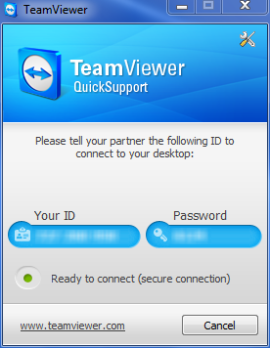
Step 4:
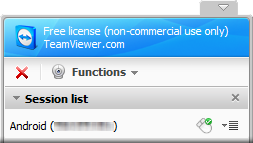
If you're setting this up on someone else's computer, you may want to create a shortcut for them or place the file on their desktop so they can find it more easily when they need your help. Once you've connected to the computer, a small window with a session list will pop up in the lower right-hand corner.
TeamViewer session list
Android setup
Step 1:
On your Android phone, install TeamViewer from the Android Market and launch it. In the first box, enter the ID of the "partner" computer. In the second box, enter the password and tap the "Connect to partner" button.

Step 2:
Once connected, you'll see gesture control instructions.

Step 3:
Close the instruction screen to see the desktop of the remote computer.
TeamViewer connected

You've got control! Now you can help your in-law's figure out how to use Netflix streaming or add an RSS feed to Google Reader. You can help someone with just about anything he or she might need help with, without having to physically be there. You can use the mouse, type, print, and even reboot the remote computer.
The Android version of TeamViewer does have a few limitations, compared with the computer version. The Android version does not support local audio, text chat , video chat, or file transfers.
June 20, 2011
Huawei announces 7-inch MediaPad tablet with Android 3.2

Keep in mind that these rivals are all sporting 9.7 or 10.1-inch displays, so for a given resolution it is to be expected that in terms of pixel density they'll come in lower compared to a device featuring a 7-inch panel.
According to Huawei's press release, Android 3.2 is "dedicated to enhance the full potential of 7-inch tablets", though feature-by-feature we don't expect it to be very different from the latest 3.1 release. In terms of specs you can look forward to 8GB of internal storage as well as a microSD slot for expansion, rear and front-facing cameras (5MP and 1.3MP, respectively), HSPA+ (14.4Mbps) 3G support, 802.11n Wi-Fi, 1080P full HD video playback, and around six hours of life. There was no mention of RAM as the company says it's still working with partners on specifics.
The MediaPad will be supported by Huawei Device’s Hi-Space cloud storage solution and comes pre-loaded with applications such as Facebook, Twitter, Let’s Golf and Documents to Go.
There was no mention of pricing in the press release but the company promises the MediaPad will be available in select markets from Q3 2011. According to Engadget, Huawei has "no current plans" to produce a WiFi-only model, so we're probably not going to see prices in line with Asus' $400 Eee Pad Transformer and perhaps not even the $500 iPad 2.