

May 22, 2012
Linux Kernel 3.4 released

"Sure, I always wish for the -rc's to calm down more quickly than they ever seem to do, but I think on the whole we didn't have any big disruptive events, which is just how I like it. Let's hope the 3.5 merge window is a calm one too," he wrote in his announcement.
Such peace has not always been the norm. As recently as last year, controversies over hypervisor support roiled the Linux community, which is known for the full-throated tenor of its debates.
Some of the most important new features in Linux 3.4, according to Kernel Newbies, include substantial updates to the BTRFS file system and new support for graphics hardware from Nvidia, Intel and AMD.
New repair and data recovery tools, error handling improvements and larger metadata blocks were all added to BTRFS in Version 3.4, and support for Intel's Medfield smartphone graphics architecture, Nvidia GeForce 600 "Kepler" devices, and AMD's 7000-series Radeon cards were all included as well.
Along with those additions, a host of other features found their way into Linux 3.4, including a new application binary interface aimed at melding some of the advantages of both 32-bit and 64-bit system architectures. The Yama security module has also been added.
According to a report from Phoronix, Version 3.5 will see additional graphical support improvements. What's more, the publication noted that the process of building Linux support for Intel's forthcoming Haswell processor architecture -- due out in early 2013 -- has begun in earnest.
September 11, 2011
Hackers break into Linux Foundation and Linux.com, both taken offline

A notice posted on the Linux Foundation said the entire infrastructure including LinuxFoundation.org, Linux.com, and their subdomains are down for maintenance due to a security breach that was discovered on September 8, 2011.
The group said, they have made this decision in the interest of extreme caution and security best pratices and believed this breach was connected to the intrusion on kernel.org.
More from the Linux Foundation announcement:
We are in the process of restoring services in a secure manner as quickly as possible. As with any intrusion and as a matter of caution, you should consider the passwords and SSH keys that you have used on these sites compromised. If you have reused these passwords on other sites, please change them immediately. We are currently auditing all systems and will update this statement when we have more information.Although the Kernel.org site is still offline after that compromise which was discovered on August 28th, most of the services offered by the Linux Foundation will be restored immediately the breach has been neutralized and new security measures put in place.
We apologize for the inconvenience. We are taking this matter seriously and appreciate your patience. The Linux Foundation infrastructure houses a variety of services and programs including Linux.com, Open Printing, Linux Mark, Linux Foundation events and others, but does not include the Linux kernel or its code repositories.
September 6, 2011
Torvalds dumps Kernel.org for Github after breach

Torvalds said in a post to LKLM.org that the move was simply a way to put the new code out there, rather than an indictment of the situation at kernel.org, which is still suffering after attackers gained root access to its servers using the Phalanx self-injecting rootkit.
The intrusion wasn’t detected for 17 days and is thought to have infected the systems of senior team members, with users being advised to change their passwords and update SSH keys.
“Master.kernel.org is still down, and there really hasn't been a ton of development going on, so I considered just skipping a week,” Torvalds said.
“But hey, the whole point (well, *one* of the points) of distributed development is that no single place is really any different from any other, so since I did a github account for my divelog thing, why not see how well it holds up to me just putting my whole kernel repo there too?”
Some users may be confused by the new setup, he said, but those who want to check can confirm his signed tags on the site before downloading. That said, there hasn’t been much development on the kernel itself, although dive logs are getting a brush up.
Meanwhile, kernel.org is doing a complete check for any stray malware that may be left on systems around the world, and a full investigation into what happened is ongoing. Torvalds didn’t rule out going back to kernel.org for distribution once the problems are sorted.
Ubuntu (Oneiric Ocelot) 11.10 Beta 1 Review
Ubuntu 11.10, just released as its first beta differs only slightly in its looks from its 11.04 predecessor – a fact that will be welcome news to penguins still reeling from that earlier version's grand re-boot.
That earlier release shed GNOME 2.x, ignored GNOME 3.0 and set its brand-new Unity interface as the default.
Unfortunately, while the Unity desktop has potential, the initial release was rough enough around the edges that I suggested at the time waiting for a few more releases before embracing it.
While the first beta of 11.10, called Oneiric Ocelot, is also a little rough at the edges and features some curious design decisions, the version of Unity here is more stable and it is faster than the version that shipped with 11.04. In other words, Unity is making progress, albeit slower than many would like.

One of the areas that has seen a considerable makeover in the last six months is Unity's Dash. First and foremost, the Dash button has been moved from the top panel to the Unity launcher and its capabilities have been extended.
For example, there's a new music tab so you can start playing songs directly from Dash. Also, instead of the separate Places search tool, searching for files is now just a tab inside the Dash.
In fact, the whole "Places" metaphor from GNOME has been dumped in favor of what Unity calls "Scopes and Lenses." How the new metaphor makes more sense is anyone's guess, but at least your new "Lenses" have gained a quick filtering ability. For example, instead of searching for "Internet" to find applications that connect to the web, now you can just click the "Internet" filter. Similarly there are filters to refine your searches by date or tag.

The Dash also now has its own window controls, so you can easily maximize or resize it to suit your whim, just like any other window in Unity. The visuals for the Dash have been updated as well, with a new transparency that looks vaguely like Windows 7. In another nice addition, the Dash will now, chameleon-like, automatically shade itself according to your desktop wallpaper.
Interestingly, while Dash gains window controls, full-screen windows have lost them in this release. Or rather the controls and menu items are now hidden and only appear when you mouse over the title bar. It's a small change, but one of those small changes that has people all riled up. In this case I'll side with those that call it unnecessary. If there were space saved, a few pixels even, it might make sense, but it doesn't save any space. As it stands the revamped title bar feels more like change purely for the sake of change than anything a user might call useful.
Muddled menu
Far more useful is the new ALT-TAB switcher, which now displays window previews, even for minimized windows. It's a small upgrade that both looks better and makes it easier to find what you're looking for when you switch windows.
Among the other, smaller visual changes is a new icon for the "shutdown" menu. Designers at Ubuntu's chief steward Canonical have added a small gear icon to the traditional shutdown icon in an attempt, it seems, to give you a hint that in fact the shutdown menu isn't just a shutdown menu. It manages to get the idea across, but doesn't really help the muddled menu beneath it that still can't decide exactly what it wants to be - just a shutdown menu, or something more.

he Software Center continues to improve with this beta, too. This time around it's also much faster thanks to the new GTK 3 backend. Of course it still lacks some of the features found in Synaptic, like the ability to install a specific version of a package. It's also worth noting that, with 11.10, Synaptic has officially been shown the door and is no longer installed by default.
Other apps on the outs include Evolution, which has been replaced with Mozilla's Thunderbird mail app: Thunderbird 7.0 beta one will be the official email client for Ubuntu 11.10. While Thunderbird is in many way much nicer than Evolution there's no denying that it's missing a calendar, which might be a huge stumbling block for some users. There is Lightning, a calendar plugin for Thunderbird, but it isn't installed by default.

The first beta also has something of a bombshell for Ubuntu users who don't like Unity. The option to revert to the GNOME 2.x desktop is now gone. Since 11.10 completes the under the hood upgrade to GNOME 3.0, there is no GNOME 2.x to revert to anymore.
The message of 11.10 seems pretty clear: Unity is here and you're either going to love it or leave it. While Unity is clearly improving - and getting faster - it remains a departure from the old GNOME interface that isn't going to please everyone. If all else fails you can always jump ship to the XFCE desktop, which now counts Linus himself as user.
September 1, 2011
Hackers gain unauthorized access into Linux source code site

The bad guys paid the good guys an unwelcome visit earlier this month, breaking into the Kernel.org website that is home to the Linux project. They gained root access to a server known as Hera and ultimately compromised "a number of servers in the kernel.org infrastructure," according to a note on the kernel.org website Wednesday.
Administrators of the website learned of the problem Sunday and soon discovered a number of bad things were happening on their servers. Files were modified, a malicious program was added to the server's startup scripts and some user data was logged.
Kernel.org's owners have contacted law enforcement in the U.S. and Europe and are in the process of reinstalling the site's infrastructure and figuring out what happened.
They think that the hackers may have stolen a user's login credentials to break into the system, and the site is making each of its 448 users change their passwords and SSH (Secure Shell) keys.
The hack is worrying because Kernel.org is the place where Linux distributors download the source code for the widely used operating system's kernel. But Kernel.org's note says that, even with root access, it would be difficult for a hacker to slip malicious source code into the Linux kernel without it being noticed. That's because Linux's change-tracking system takes a cryptographic hash of each file at the time it is published.
So once a component of the Linux kernel has been written and published to Kernel.org, "it is not possible to change the old versions without it being noticed," the Kernel.org note said.
This kind of compromise has become disturbingly common. In January, servers used by the Fedora project -- the community version of Red Hat Enterprise Linux -- were hacked. And around the same time another open-source software development site called SourceForge was also broken into.
August 20, 2011
Quick Tips to Backup your Linux Computer
Linux gives you plenty of control over your computer, but with great power comes great responsibility. That means backing up your files regularly (among other things), and while cloud storage is attractive, for many of us, it's not enough. Here's how to back up your data (note: I am using Ubuntu, so the details may differ somewhat if you use a different distribution):
Related tutorial: 16 Cool Ubuntu Tips for Linux Users
1. From the search bar, just type "backup" to bring up preinstalled options. I'll be using Simple Backup Suite.
2. From the first tab (General), tell Linux how often you want to perform a complete back up and what format, if any, to use for compression.

Step 2: General tab.
3. Select the Include tab to add files and directories. The default is pretty good for most users, but you may have some files hidden away that deserve to be backed up, so be thorough! You only have to do this once.
4. Select the Exclude tab if you want to keep some files or subfolders from being archived. There's no special reason to do this unless you're trying to save space (or you're a bit compulsive).
5. Make sure to select the Destination tab to pick your storage location. As with any other backup, you'll want it to be as secure as possible. A network location is probably best, though your needs may vary.

Step 5: Destination tab.
6. The Schedule tab lets you set a schedule to do incremental backups of files that have changed since the last backup. This happens in the background and shouldn't interrupt your day-to-day work.
7. Click the disk icon at the top to save your settings, then click the drive icon to back up your files. The first one will take a while, most likely, as will future complete backups, so you may want to schedule them for downtimes.
That's it. Once you've worked through this, the only reason you'd need to revisit the tool is to change the frequency, location, or contents of your backups. Do it as soon as you can--even Linux can't protect you from disk failure!
July 25, 2011
Red Hat Enterprise Linux 5.7 Now Available
Highlights of Red Hat Enterprise Linux 5.7 include:
Hardware enablement
Support for new hardware from Red Hat partners encompassing processors, chipsets and new drivers for storage, networking, and graphics allows Red Hat Enterprise Linux 5 deployments to benefit from new hardware platforms delivered in 2011, including Intel, AMD, POWER and IBM System z.
Virtualization improvements
Several virtualization enhancements in Red Hat Enterprise Linux 5.7 include improved migration performance for KVM, as well as several performance and scalability improvements for the Xen hypervisor.
SCAP support
OpenSCAP introduces support for the Security Content Automation Protocol, including a library and set of utilities, giving a standardized approach to validating Red Hat Enterprise Linux security.
Introducing Subscription Manager in Red Hat Enterprise Linux 5
First introduced to Red Hat Enterprise Linux 6.1 customers and now to Red Hat Enterprise Linux 5 customers, the new X.509 certificate-based Subscription Manager feature delivers Red Hat Enterprise Linux subscriptions and software services in a flexible, scalable, and secure way. The Subscription Manager tracks subscriptions assigned to a system and configures software updates for better availability and faster update speeds.
Networking and storage enhancements
Added features for network bridging and LDAP features for autofs improve centralized management of user filesystems in an enterprise environment.
Availability Fencing
New fencing features boost cluster reliability in Cisco UCS system and VMware environments.
For more information about Red Hat Enterprise Linux, visit here. To access the Red Hat Enterprise Linux 5.7 release notes, visit here. Detailed technical notes are available here.
July 22, 2011
Linux 3.0 Out...No Significant Changes
Linux 3.0 is out and the big changes are nothing to worry about.
Linus Torvalds, its creator and lead developer had warned us that this would be the case: “So what are the big changes?”
"NOTHING. Absolutely nothing. Sure, we have the usual two thirds driver changes, and a lot of random fixes, but the point is that 3.0 is *just* about renumbering, we are very much *not* doing a KDE-4 or a Gnome-3 here. No breakage, no special scary new features, nothing at all like that.In case you didn’t get the message first time, when Torvalds finally released Linux 3.0 on July 22nd, he wrote,
We’ve been doing time-based releases for many years now; this is in no way about features. If you want an excuse for the renumbering, you really should look at the time-based one ("20 years") instead. So no ABI [application binary interface] changes, no API [application programming interface] changes, no magical new features - just steady plodding progress."
"As already mentioned several times, there are no special landmark features or incompatibilities related to the version number change, it’s simply a way to drop an inconvenient numbering system in honor of twenty years of Linux. In fact, the 3.0 merge window was calmer than most, and apart from some excitement from RCU [Ready, Copy, Update] I’d have called it really smooth. Which is not to say that there may not be bugs, but if anything, there are hopefully fewer than usual, rather than the normal ‘.0′ problems."

The Xen hypervisor now can run natively with Dom0 (Domain 0) privileges. This gives it, like Linux’s Kernel-based Virtual Machine (KVM), the ability to work at the lowest possible level of the Linux kernel. In practical terms this means Xen virtual machines should run faster.
There have also been improvements with how the kernel works with the still experimental Btrfs (B-tree file system) and the now standard ext4 file system. This, in turn, should lead to faster and, in the case of Btrfs, more reliable, file systems.
The Linux 3.0 kernel also improves its interoperability with UEFI (Unified Extensible Firmware Interface), a replacement for PC’s BIOS. While UEFI has been slow to catch on, it’s beginning to be picked up by major PC and server companies like HP. Since UEFI lends itself well for business desktop and server deployments, you can expect to see more and more UEFI computers entering the market in the next year or two.
3.0 is also bringing in a new implementation of the Berkeley Packet Filter (BPF) The net effect of this improvement will be speed up any application that calls on network services. While this won’t matter that much if you’re just trying to get the most from your Web browser, it can save significant time for Web servers and other network service software.
So, all-in-all, there is good stuff here. Radical? No. Revolutionary? I don’t think so! But, still good, solid improvements.
July 6, 2011
Ubuntu: How to Install and Run Linux from your USB Flash
What do you use your USB flash drive for? Have you considered running Linux from it? A Linux Live USB flash drive is a great way to try out Linux without making any changes to your computer. It's also handy to have around in case Windows won't boot--allowing access to your hard disks--or if you just want to run a system memory test.
Install Ubuntu onto USB flash drive
There are a lot of Linux distros to choose from, but in our example, we are going to install Ubuntu using a Windows machine. Your USB flash drive should be at least 1GB in size.
Step 1: Download the 32-bit ISO of Ubuntu 11.04 Desktop and the Universal USB Installer. The ISO file is named ubuntu-11.04-desktop-i386.iso and the Universal USB installer is named Universal-USB-Installer-1.8.5.6.exe.
Step 2: Double-click on Universal-USB-Installer-1.8.5.6.exe and after accepting the license agreement, select Ubuntu 11.04 from the drop-down list.

Step 3: Browse and select the Ubuntu 11.04 ISO file you just downloaded.

Step 4: Select the drive letter of the USB flash drive you want to put Ubuntu onto and check the box to format the USB flash drive. Make sure persistent file size is set to 0MB, then click the Create button.

Step 5: Confirm the details of the install then click the Yes button.

Run Ubuntu Live
Step 1: Make sure that your computer's BIOS is set to boot from USB devices then insert the USB flash drive into a USB 2.0 port. Turn your computer on and watch it boot to the installer boot menu.
Step 2: At the installer boot menu, select "Run Ubuntu from this USB."
Step 3: You'll see Ubuntu start up and eventually get the Ubuntu desktop. From here, you can configure your Wi-Fi and use the included Firefox browser to access the Internet.

There you have it. Now you know how to set up your USB flash drive to run Linux. Keep in mind that any changes you make while running Linux Live will not be saved. If you like what you see and want to run the full-blown version of Ubuntu, you can use the USB flash drive to install it onto your computer. Good luck and have fun!
June 16, 2011
BackTrack 5 Linux – Penetration Testing Distribution
 BackTrack is a Linux-based penetration testing arsenal that aids security professionals in the ability to perform assessments in a purely native environment dedicated to hacking. Regardless if you’re making BackTrack your primary operating system, booting from a LiveDVD, or using your favorite thumbdrive, BackTrack has been customized down to every package, kernel configuration, script and patch solely for the purpose of the penetration tester.
BackTrack is intended for all audiences from the most savvy security professionals to early newcomers to the information security field. BackTrack promotes a quick and easy way to find and update the largest database of security tool collection to-date.
Our community of users range from skilled penetration testers in the information security field, government entities, information technology, security enthusiasts, and individuals new to the security community. Feedback from all industries and skill levels allows us to truly develop a solution that is tailored towards everyone and far exceeds anything ever developed both commercially and freely available.
Whether you’re hacking wireless, exploiting servers, learning, performing a web application assessment, or social-engineering a client, BackTrack is the one-stop-shop for all of your security needs.
The evolution of BackTrack spans many years of development, penetration tests, and unprecedented help from the security community. BackTrack originally started with earlier versions of live Linux distributions called Whoppix, IWHAX, and Auditor. When BackTrack was developed, it was designed and developed by seasoned security professionals to perform penetration testing from one live CD and not leave remnants of the on the laptop itself. It has since expanded to being the most widely adopted penetration testing framework in existence and is used by the security community all over the world.
What's New in This Release:
- Kernel 2.6.35.8 – *Much* improved mac80211 stack.
- USB 3.0 support.
- New wireless cards supported.
- All wireless Injection patches applied, maximum support for wireless attacks.
- Even *faster* desktop environment.
- Revamped Fluxbox environment for the KDE challenged.
- Metasploit rebuilt from scratch, MySQL db_drivers working out of the box.
- Updated old packages, added new ones, and removed obsolete ones.
- New BackTrack Wiki with better documentation and support.
or read more
April 19, 2011
Hacking Linux : Programmers test themselves

Many corporations use Linux as their server on the web as it is cheaper and easier to deploy. Its security is also better when compared to Microsoft operating systems. No wonder that network hacking tools for this open source operating system have proliferated in the last years.
What Are The Issues With Open Source Linux?
The main difference between Linux and Windows is that Linux is open source and windows are closed source. So? Well, that means that only Microsoft is authorized to change any part of the code of the Windows operating system. While in Linux, anyone can change it.
The other problem is that the Linux Operating System doesn't receive the same level of support as Windows does. That means that updates and security packages are released with each new version of the Operating System (OS), but not as periodic updates as in the case of Windows XP's Windows Update.
That means that the user will have to be the one responsible for checking for the updates instead of trusting this matter to an organization. So, a user could pass long periods of time without knowing that his OS has an important security failure that could compromise his work or even the security of his network.
The only way to contra rest this inconvenient, is buying support from a determined Linux OS provider, like Red Hat. For an annual fee, they will provide you with important information on the different bugs that have been found in the OS and that need to be fixed.
If you choose otherwise, you will spend a long time inside forums talking to Linux experts around the world. If that isn't the core competence of your business, why should you spend that time doing it? That's one of the main arguments that Microsoft uses when comparing it's OS with open source OS's.
Vulnerabilities of the Linux Operating System
What Are The Vulnerabilities?
The main vulnerability of Linux OS is that anyone can access the code of the operating system. And, if you are not savvy enough with the programming code like hackers are. You only need to search for the correct free Linux hacking tool and you will be able to get inside in no time.
The other problem is that many of the drivers made for determined hardware. Let's say, a printer is not created by people who have security in mind. This is specially important for a company who do not wish to find it's intellectual property is stolen each time they send something to the printing room.
So, after all of these possible loopholes inside Linux OS, you should consider using a version that has been designed with security in mind. Check www.engardelinux.com and find more about this variation of Linux OS.
What Is Kernel Hacking?
The kernel is the software inside a computer that is in charge of maintaining an adequate communication between the hardware and the rest of the software. One of the strong points among the Linux community is that the kernel of a Linux OS can be altered. And for what reason? The two main motives are fixing any problem that may arise and increase the efficiency of a driver responsible for managing a determined piece of hardware.
Hacking Runescape
Runescape is a massively multiplayer online role-playing game that was launched in 2001 by Jagex Limited. The marvelous thing about this online game is that it is independent of the operating system that you are using since it works over the web using JAVA (JAVA is a platform that can work in any kind of computer since it creates a virtual machine for its own use).
But as in any online game, you will find people who are hacking Runescape. Although it is free to use and only requires some basic information for it's subscription, some hackers are willing to spend their time trying to find a backdoor or any other scheme that will permit them obtain an advantage over other players. One could say that it is inevitable due to the competitive nature of our species.
So, Runescape hacking, hacking programs for Runescape, free password hacking programs for Runescape, files for hacking Runescape and hacking Runescape accounts has become quite common among players. Although some could say that there is no grace in doing this since it is basically cheating, hackers don't think the same. For them, using any method for being the best in the game isn't only good; it's what is expected from any human being.
Thanks to free network hacking tools, hackers from around the world with a basic knowledge of English and some practice with computers, can start lurking networks everywhere, waiting for their chance to success and increase their reputation inside the hacking community. Although right now Windows is the preferred platform, Linux hacking will become a favorite amongst hackers.
February 15, 2011
16 Cool Ubuntu Tips For Linux Users

1. Get lightning fast and clever at the command line
You can use keyboard shortcuts and other command line tricks to make entering commands easier and faster. You might already know about the ‘tab’ key which completes partial commands and even file and directory names.
Here are some other keyboard shortcuts you can use within terminal:
| Ctrl-a | Move to the start of the line. |
| Ctrl-e | Move to the end of the line. |
| Alt-] x | Moves the cursor forward to the next occurrence of x. |
| Alt-Ctrl-] x | Moves the cursor backwards to the previous occurrence of x. |
| Ctrl-u | Delete from the cursor to the beginning of the line. |
| Ctrl-k | Delete from the cursor to the end of the line. |
| Ctrl-w | Delete from the cursor to the start of the word. |
| Ctrl-y | Pastes text from the clipboard. |
| Ctrl-l | Clear the screen leaving the current line at the top of the screen. |
| Ctrl-x Ctrl-u | Undo the last changes. Ctrl-_ |
| Alt-r | Undo all changes to the line. |
| Alt-Ctrl-e | Expand command line. |
| Ctrl-r | Incremental reverse search of history. |
| Alt-p | Non-incremental reverse search of history. |
| !! | Execute last command in history |
| !abc | Execute last command in history beginning with abc |
| !n | Execute nth command in history |
| ^abc^xyz | Replace first occurrence of abc with xyz in last command and execute it |
2. Launch Ubuntu Linux Applications with keyboard
There are two ways you can achieve this:
- Use applications like Launchy or Gnome-Do that make it easier to launch applications by typing a few characters of the application’s name.
- Or you can summon gconf editor (Alt+F2 then type gconf-editor and hit enter), and navigate to apps > metacity > global_keybindings, double click on any of the run_command_N and type in the keyboard shortcut you want to assign to an application then make a mental note of the number N. Then go to apps > metacity > keybinding_commands and double click on command_N (N being the number you used above) and type in the command you want to run. As an example if you wanted to run Firefox you would type in firefox.


3. Start from wherever you left off

You can make Ubuntu remember the applications you had open when you last logged out, so that when you log back in again you’ll find all those applications running and you can resume right from where you left off.
To achieve this go to System > Preferences > Startup Applications, then go to the options tab and check "Automatically remember running applications when logging out"
4. Create a Separate Ubuntu Linux Home Partition

New versions of Ubuntu arrive every 6 months. Although you can upgrade to the latest version via the update manager, sometimes the upgrade doesn’t work as expected so some users like to do a fresh clean install.
The disadvantage with that of course is that you lose data you had in your home directory. To overcome this you can create a separate Home partition when you are installing Ubuntu, size it according to your requirements and then when you decide to install Ubuntu the next time, simply specify this partition as the Home partition (by choosing /home as the mount point).
All your files and data on the Home partition will be preserved even after a fresh install.
5. Update and Install Ubuntu Linux Software Without Internet Connection

Note that APTonCD requires you to have an internet connection (or downloaded packages) to create the installed media. However once the media is ready you don’t need an internet connection for any of the machines you want to install the software on. Insert the appropriate CD/DVD and use apt-get as you would normally.
6. Install new fonts, Microsoft fonts and improve font rendering

Ubuntu doesn’t offer many choices when it comes to the fonts. However you can easily install new fonts including those from Microsoft like Arial, Verdana, impact and many more. You can use different sites to find the kind of font you are looking for.
7. Use PPAs, Install latest versions of software
There are a lot of steps that a software has to go through before it becomes part of Ubuntu or becomes available through the Ubuntu repositories. While all those steps lend additional stability, it generally means that you don’t get the latest versions of all the software as soon as they are released.
If you like to stay on the cutting edge, you can search for Personal Package Archives for your favorite software on Launchpad and add those to your installation’s software sources. I briefly touched on PPAs and how to use them here. If that seems like too much work, you can also download the latest deb packages and install them by double clicking (you won’t get automatic updates for the software if you install it this way).
Remember you might get into an occasional trouble or two with the latest versions, but mostly it wouldn’t be catastrophic. You can always hop over to the Ubuntu Forums to get quick help.
8. Be the root
The root account is disabled by default on Ubuntu installations, mainly to prevent you from doing something you didn’t intend to do. However if you "promise to be careful" you can enable root account as follows:

1. Type sudo passwd root and provide a root password.
2. Then head on over to System > Administration > Login Window, go to the Security tab and check "Enable local system administrator login"
You should now be able to login as root from the Login prompt. As an alternative you can use "sudo su" to provide your password and get root prompt.
9. Run Windows applications and games

Who wouldn’t like to play Counter Strike on Ubuntu (unless of course you are completely not into it) or perhaps even run Photoshop?
10. Shorten boot time with profiling
Ubuntu Linux devs have done a great job with the boot time, Jaunty is fast and Karmic is slotted to be even faster. There is however a bit more you can do by profiling your boot. Profiling lets Ubuntu make a list of all the files that are accessed during bootup, it then sorts the files according to how they are stored on your hard disk. So the next time the system is booted, the files would be read faster.
To profile boot you need to follow these steps
* At the grub menu highlight the kernel you boot most often.
* Press e for edit.
* Choose the line starting with kernel and press e again. Now add the word profile to the end of this line. Hit Enter and then press b to boot
Note that while profiling, the system will boot slower this one time, the next time however you should see an improvement. Also keep in mind that all this is machine-dependent and also depends on the arrangement of files on your hard disk, so the difference you see might not be huge, or even nil in some cases.
11. Try out different Ubuntu Linux Desktop Environments and Desktop Managers
If you are looking for something different than the default Gnome interface, you should check out alternative desktop managers that you can use. If it is a complete Desktop Environment you are looking for, KDE4 has come a long way and is now impressively usable and fun. You can do a "sudo apt-get install kubuntu-desktop" to get KDE.
12. Create a media center or a media server

It would be great if you could easily browse and manage your huge collection of music, videos and pictures. Mesmerized by Windows Media Center’s slick interface? Wait till you see what all cool options you have to turn your Ubuntu system into a media center. You can even access your media collection on your phone, PSP or a different computer if you set up a media server on your Ubuntu machine.
13. Share Firefox profile data with Windows
Many people use Windows and Linux on the same machine. If you are one of them, there would have been times you couldn’t find that bookmark you created or password you stored when you were using Firefox from within Windows. For different computers you can of course use Weave.
14. Customize Nautilus to your liking
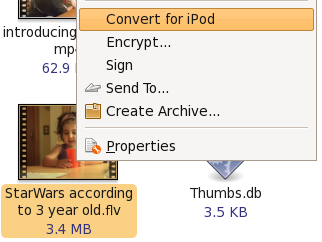
Nautilus is the default file manager on Ubuntu. While you may be content with what it does, there is lots more you can make it do. You can use extensions to improve functionality and even add custom functionality to Nautilus
15. Compile your own Kernel
If you can’t find something to keep you busy for the weekend and you have your customization hat on, how about building a kernel to specifically meet your requirements? This is frankly more of a learning experience. Some might say that it enables you to use just the features and drivers you require, but if everything is working fine with the kernel supplied and you don’t have any interest in the Linux kernel, skip ahead this one is not for you.
If however you require some of the experimental features of the kernel, or need it to be compiled in some other special way we say you check out this guide within Ubuntu Documentation.
16. Change Usplash Screen and create a custom splash screen for GRUB

If you would like to change that to something more interesting follow these steps. What better way to show your Linux fu than customizing the very first screen that appears? You can create a custom splash screen using one of your photos, GIMP and a little tweaking. Here is the how-to.
Know some more tips or great hacks for Ubuntu Linux users? Sure you do, go ahead let us know about them in the comments.
February 14, 2011
4 Powerful Downloadable eBooks To Teach Yourself Linux ~FREE~

Free – you ask? Yes, free. Welcome to the world of Linux where things are free both as in free speech and also as in free beer (mostly)!
If you are starting out on your journey towards Linux awesomeness, here are a few free downloadable ebooks to teach yourself Linux that should help you along nicely:
Introduction to Linux – A Hands on Guide

Takes you from the absolute basics to basics. This hands on guide tells you everything right from logging in, basic file management, backup techniques up to basics of networking. It is what you need if you are having difficulty figuring out how to get to that resume file you saved just now. The guide explains Linux file structure and introduces to basic commands and text editors as well.
GNU/Linux Command line tools Summary
(Download)

One important aspect of working in Linux is that you have to familiar with the command line. This book shows you how to use the command line in Linux to your advantage. Apart from the ins and outs of the shell, this book also introduces various commands and the situations where you would use them. There are chapters that deal with specific tasks and list various commands you can use to achieve the task. If you can study online, there is another excellent manual you can refer to.
Ubuntu Pocket Guide and Reference
(Download)

Ubuntu is one of the most popular distributions, new users look up to when trying out Linux. If it is Ubuntu specific information that you are after then you should definitely check out Ubuntu Pocket Guide and Reference. The guide takes you from installing and configuring Ubuntu to adding and managing software and securing your system. A must read book if you use Ubuntu.
Rute User’s Tutorial and Exposition
(Download)

This one is not for the faint hearted! There is enough Linux juice in this book to keep even the intermediate to advanced users interested. The book begins humbly by presenting the basic commands and tools, however before you know it, you are learning everything from regular expressions to shell scripting to C programming to networking.
There is plenty of great material out there if you are trying to learn Linux, similar to these downloadable ebooks to teach yourself everything you ever wanted to know about Linux. If you have read a book or a tutorial that you found particularly useful, feel free to tell us about it in the comments below.
January 19, 2011
Bot attacks Linux and Mac but can't lock down its booty
From the department of cosmic justice comes this gem, spotted by researchers from Symantec: a trojan that targets Windows, Mac, and Linux computers contains gaping security vulnerabilities that allow rival criminal gangs to commandeer the infected machines.
Known as Trojan.Jnanabot, or alternately as OSX/Koobface.A or trojan.osx.boonana.a, the bot made waves in October when researchers discovered its Java-based makeup allowed it to attack Mac and Linux machines, not just Windows PCs as is the case with most malware. Once installed, the trojan components are stored in an invisible folder and use strong encryption to keep communications private.
The bot can force its host to take instructions through internet relay chat, perform DDoS attacks, and post fraudulent messages to the victim's Facebook account, among other things.
Now, Symantec researchers have uncovered weaknesses in the bot's peer-to-peer functionality that allow rival criminals to remotely steal or plant files on the victim's hard drive. That means the unknown gang that took the trouble to spread the infection in the first place risks having their botnet stolen from under their noses.
“Even though it's encrypted and even though it was written in Java to make it cross-platform, it was still vulnerable to basically a directory transversal exploit,” Dean Turner, director of Symantec's Global Intelligence Network, said. “From a technical perspective, it goes to show that even if you have all those things where you're building in a secure platform, if you're not building application security into your malware, other bad guys will probably take advantage of it.”
Jnanabot's P2P feature is designed to make botnets harder to take down by providing multiple channels of communication. After sending an infected machine a single GET request, a website can discover all the information needed to upload any file to any location on the host's file system. Attackers can then install a simple backdoor on a user's machine by, for instance, writing a malicious program to a computer's startup directory.
Attackers can use the same vulnerability to steal files on infected machines.
Turner said the number of Jnanabot infections so far is “measured in the thousands,” rather than the hundreds of thousands for some of the better-known trojans. Still, infection statistics gathered by Symantec in December are surprising. They show that about 16 per cent of infections hit Macs. They didn't show any infections on Linux machines. Turner said that Jnanabot attacks on the open source platform weren't able to survive a reboot.

The bot was discovered spreading over Facebook posts that planted the following message on infected users' Facebook pages: “As you are on my friends list I thought I would let you know I have decided to end my life.” An included link leads recipients to a cross-platform JAR, or Java Archive file that can run on Windows, Mac, or Linux. Once the recipient is infected, his Facebook page carries the same dire warning.
It's not the first time that malware developers have built gaping vulnerabilities into their wares. In September, researcher Billy Rios disclosed a weakness in the Zeus crimeware kit that makes it easy to take over huge networks of infected PCs.
Symantec has more about the trojan here, here, and here.
July 8, 2009
Assign IPv6 addresses in Linux
It is inevitable that IPv6 addresses are going to eventually take over. When that happens you will need to know just how to assign an IPv6 address in your Linux operating system. Of course this will only be necessary on a system that uses a static IP address, but when you’re using Linux that can happen fairly often. Having this knowledge on hand will make this transition seamless.
Of course you will have to have a kernel that is compiled with IPv6 support. Most modern Linux distributions already have this built in. You also have to have your IPv6 addresses handy. I use this simple web-based IPv6 calculator. With that tool select the IPv4 to IPv6 conversion and you should be good to go. So with everything in hand, you are ready to configure.
IPv6 support
First make sure your kernel supports IPv6. To do this you can first run the command:
sudo lsmod|less
and search the listing to see if ipv6 is there. If not try loading it with the command:
sudo /sbin/modprobe ipv6
Now issue the lsmod command to see if it is there. It should be.
Configuration
The file you want to configure will be the standard network interface configuration. Remember you are going to configure for static IP addresses. The file in question is /etc/network/interfaces. Most likely this is either not configured (if you are using DHCP) or set up for IPv4. We are going to blow that away now. We are also going to add something to this file that will ensure IPv6 is loaded properly and that your networking us making use of the new address scheme.
The details of our configuration:
IPv4 address: 192.168.1.10
IPv6 Address: 2002:c0a8:10a::
IPv4 gateway: 192.168.1.1
IPv6 gateway: 2002:c0a8:0101::
Now let’s add this to the /etc/network/interfaces file. The new file will look like this:
#IPV6 static configuration
iface eth0 inet6 static
pre-up modprobe ipv6
address 2002:c0a8:10a::
netmask 64
gateway 2002:c0a8:0101::
Notice the “pre-up” command. That is where we ensure that IPv6 is added to the kernel, otherwise you run the risk of attempting to use an IPv6 address in a system that is looking for an IPv4 address.
Now you will want to restart networking with the command:
/etc/init.d/networking restart
You should now have an IPv6 address enabled.
Testing
Before you assume everything is working, let’s make sure first. You can check your IP routing with the command:
ip -6 route show
The above command should return something like:
2002:c0a8:0100/64 dev eth0 proto kernel scope link src 2002:c0a8:10a
You can also check by pinging with the ping6 tool. A good IPv6 address to try is the Google address. Issue this command:
ping6 ipv6.google.com
If IPv6 isn’t working you will get error:
Network is unreachable
If IPv6 is working you will see the standard ping results in your terminal window.
Final thoughts
It’s only a matter of time before IPv6 is the defacto standard for network addressing. When that happens you do not want to be behind the curve or you’ll lose out fast. Make sure you know how to configure your Linux servers for IPv6 static addressing. You’ll be glad you do when the time comes.